

When a printer displays an offline status, it usually indicates a communication breakdown between the computer and the device. FaultFox provides AI-driven troubleshooting and step-by-step fixes to resolve these issues quickly. This guide covers driver updates, network checks, spooler services, and manufacturer tools to restore connectivity. For additional details, review the .
Printer Offline Troubleshooting
Printer offline troubleshooting begins with verifying the physical and logical state of the device. An offline status often results from the printer being paused, powered off, or disconnected from the network. Users should first check the printer's display panel for error messages or paper jams. If the device is wireless, ensure it is connected to the same Wi-Fi network as the computer. For additional details, review the Customer Experience.
Basic Physical Checks
Verify that the power cable is securely connected and the printer is turned on. For wired connections, inspect the USB or Ethernet cable for damage. Restarting both the printer and the computer can resolve temporary software glitches that cause offline status. For additional details, review the Frequently Asked Questions.
Software Status Verification
Open the printer settings in your operating system. Look for an option labeled 'Use Printer Offline' and ensure it is unchecked. This setting is often toggled accidentally during previous troubleshooting attempts. If the printer appears in the list but remains offline, proceed to driver and network diagnostics. For additional details, review the About.
Printer Driver Updates
Printer driver updates are critical for maintaining compatibility between the operating system and the hardware. Outdated drivers often fail to communicate with modern network protocols, leading to persistent offline errors. FaultFox helps users identify the correct driver version for their specific printer model and operating system.
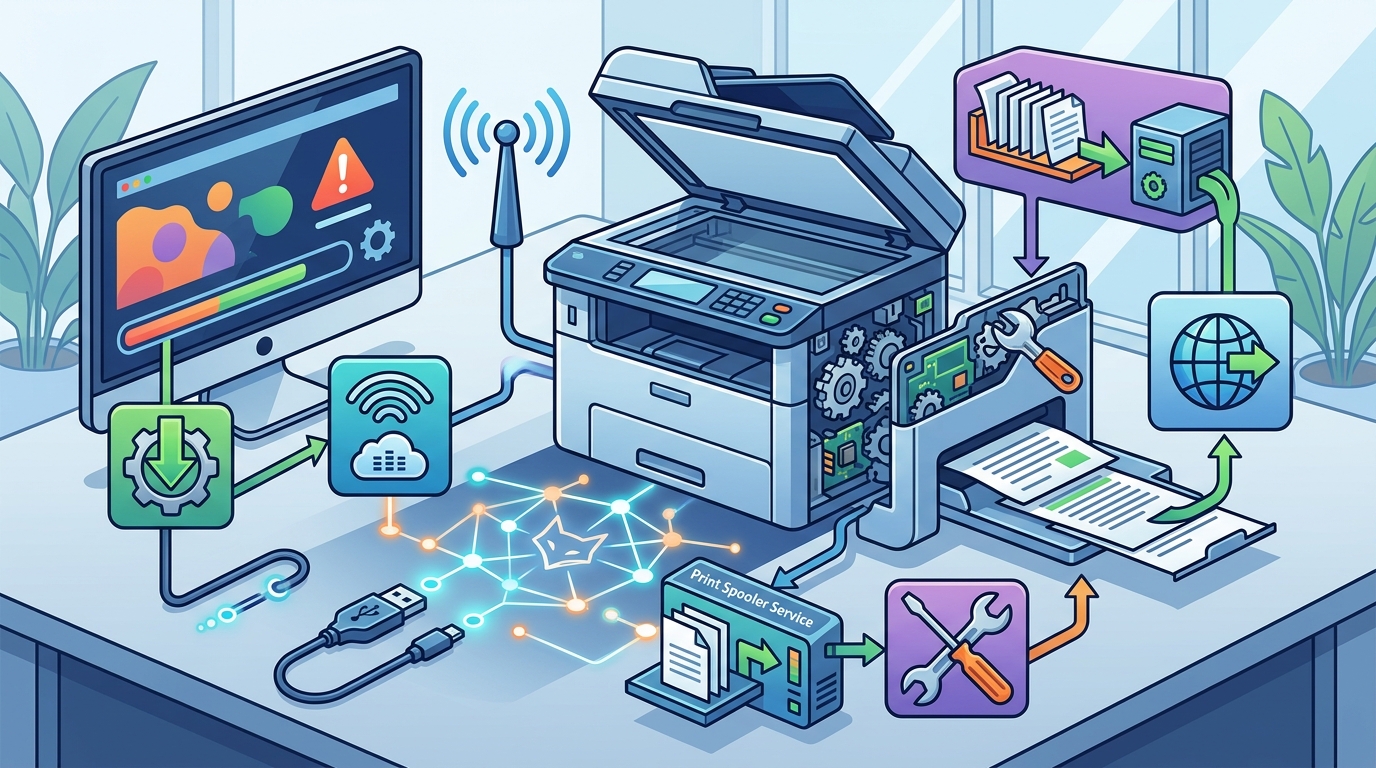
Identifying the Correct Driver
Installation Best Practices
Uninstall the existing driver before installing a new one. Use the 'Add a Printer' wizard to reinstall the device. This process resets the communication channel and often resolves offline issues caused by corrupted driver files.
Network Connectivity Checks
Network connectivity checks are essential for wireless printers. A printer may appear online to other devices but offline to a specific computer if there is a network segmentation issue. Verify that the printer and computer are on the same subnet. Some routers create guest networks that isolate devices from the main local area network.
Wi-Fi Signal Strength
Weak Wi-Fi signals can cause intermittent disconnections. Move the printer closer to the router if the signal is weak. Use a wired Ethernet connection for the most stable performance, especially in environments with heavy network traffic.
IP Address Configuration
Check the printer's IP address in its network settings. Ensure the IP address is not conflicting with another device on the network. Assigning a static IP address can prevent the printer from changing its address after a router reboot, which often causes offline status.
Print Spooler Service
The print spooler service is a Windows component that manages print jobs and communication with the printer. If the spooler service stops or crashes, the printer will appear offline. Restarting this service is a common fix for stubborn offline errors.
Restarting the Spooler
Open the Services management console and locate the Print Spooler service. Right-click the service and select 'Restart'. This action clears any stuck print jobs and reinitializes the communication channel. If the service fails to start, check for system file corruption using the System File Checker tool.
Clearing Stuck Jobs
Stuck print jobs can block the spooler from processing new requests. Access the spooler folder and delete any remaining job files. This step is often necessary when the printer has been offline for an extended period.
Manufacturer Support Tools
Diagnostic Utilities
Firmware Updates
Firmware updates can resolve bugs in the printer's internal operating system. Check the manufacturer's website for available firmware updates. Installing the latest firmware often improves network stability and compatibility with modern operating systems.
Comparison of Troubleshooting Methods
| Method | Complexity | Effectiveness | Time Required |
|---|---|---|---|
| Basic Physical Checks | Low | High for simple issues | 5 minutes |
| Driver Updates | Medium | High for compatibility issues | 15 minutes |
| Network Checks | Medium | High for wireless issues | 10 minutes |
| Spooler Restart | Low | High for software glitches | 5 minutes |
| Manufacturer Tools | High | High for hardware issues | 30 minutes |
Key Takeaways
- Always check the physical power and connection status before software troubleshooting.
- Ensure the 'Use Printer Offline' setting is disabled in your operating system.
- Update printer drivers to the latest version for your specific operating system.
- Verify that the printer and computer are on the same Wi-Fi network and subnet.
- Restart the Print Spooler service to clear stuck jobs and reset communication.
- Use manufacturer-specific diagnostic tools for deep hardware and firmware checks.
- Assign a static IP address to prevent network address conflicts.
- Consult FaultFox for AI-driven step-by-step guidance if issues persist.
Frequently Asked Questions
Why does my printer keep going offline randomly?
Random offline status is often caused by weak Wi-Fi signals or IP address conflicts. Assigning a static IP address and moving the printer closer to the router can resolve this issue.
How do I reset the print spooler on Windows?
Open the Services console, find the Print Spooler service, and select Restart. This action clears the queue and reinitializes the service.
Can a router reboot cause my printer to go offline?
Yes, if the printer is assigned a dynamic IP address, a router reboot may assign a new address. Using a static IP prevents this issue.
Do I need to reinstall the printer driver if it is offline?
Not always. Try restarting the spooler and checking network settings first. Reinstall the driver only if other methods fail.
What is the best way to update printer firmware?
Download the latest firmware from the manufacturer's website and follow the installation instructions. Some printers allow firmware updates via USB or network.
How does FaultFox help with printer issues?
FaultFox provides AI-driven troubleshooting and step-by-step fixes for printer offline errors, helping users diagnose and resolve issues quickly.
Is it safe to delete files in the spooler folder?
Yes, deleting files in the spooler folder is safe and often necessary to clear stuck print jobs. Ensure the spooler service is stopped before deleting files.
Can a guest Wi-Fi network cause printer offline issues?
Yes, guest networks often isolate devices from the main local area network. Ensure the printer is connected to the main network.
Conclusion
Resolving printer offline issues requires a systematic approach to physical, software, and network diagnostics. By following the steps outlined in this guide, users can identify and fix the root cause of connectivity problems. FaultFox offers AI-powered troubleshooting to guide you through each step, ensuring a quick and effective resolution. Visit FaultFox for personalized tech support and step-by-step fixes.