

When you encounter an error message you do not understand, the first step is to isolate the specific error code or text string. You should copy the exact message, search for it online, and identify the specific component causing the failure. FaultFox helps users diagnose these issues by translating technical jargon into clear, actionable steps. This approach prevents unnecessary hardware replacement and saves time.
Identify the Core Error Code
Most modern operating systems and applications use standardized error codes to communicate specific failures. An error code is a unique alphanumeric identifier that points to a specific software or hardware malfunction. For example, Windows often displays a Stop Error code, such as 0x0000007E, which indicates a system thread exception. Identifying this code is the most reliable way to find a solution. Generic messages like "Application has stopped working" provide little value. You must look for the specific code or file name mentioned in the dialog box. This specific identifier acts as a key to the problem.
Translate Technical Jargon into Plain Language
Technical error messages often use industry-specific terminology that confuses general users. A driver error is a failure in the software that allows the operating system to communicate with hardware. When you see a message about a "kernel panic" or "blue screen," it means the operating system has encountered a critical failure and must shut down to prevent data corruption. Understanding these terms helps you determine the severity of the issue. A simple typo in a configuration file is very different from a failing hard drive. FaultFox specializes in translating these complex messages into plain English. This translation helps you understand what the computer is actually trying to tell you.
Check for Recent System Changes
Many error messages appear immediately after a system update or software installation. A regression bug is a defect that appears in a new version of software that was not present in previous versions. If your computer started crashing after installing a new graphics driver, that driver is the likely culprit. You should review your system event logs to see what changed before the error appeared. Windows Event Viewer provides a detailed history of system events. Looking for red "Error" entries around the time of the crash helps you pinpoint the cause. This method is often faster than searching the web for generic symptoms.
Verify Hardware Integrity
Some error messages indicate physical hardware failure rather than software issues. A SMART error is a warning from the Self-Monitoring, Analysis and Reporting Technology system that predicts hard drive failure. If you see messages about disk read errors or uncorrectable sector errors, your storage drive may be dying. You should back up your data immediately in this scenario. Software fixes cannot repair physical damage to a hard drive. Checking the health of your RAM and storage devices is a critical step in troubleshooting. Tools like MemTest86 can verify memory integrity. This step ensures that the problem is not caused by failing components.
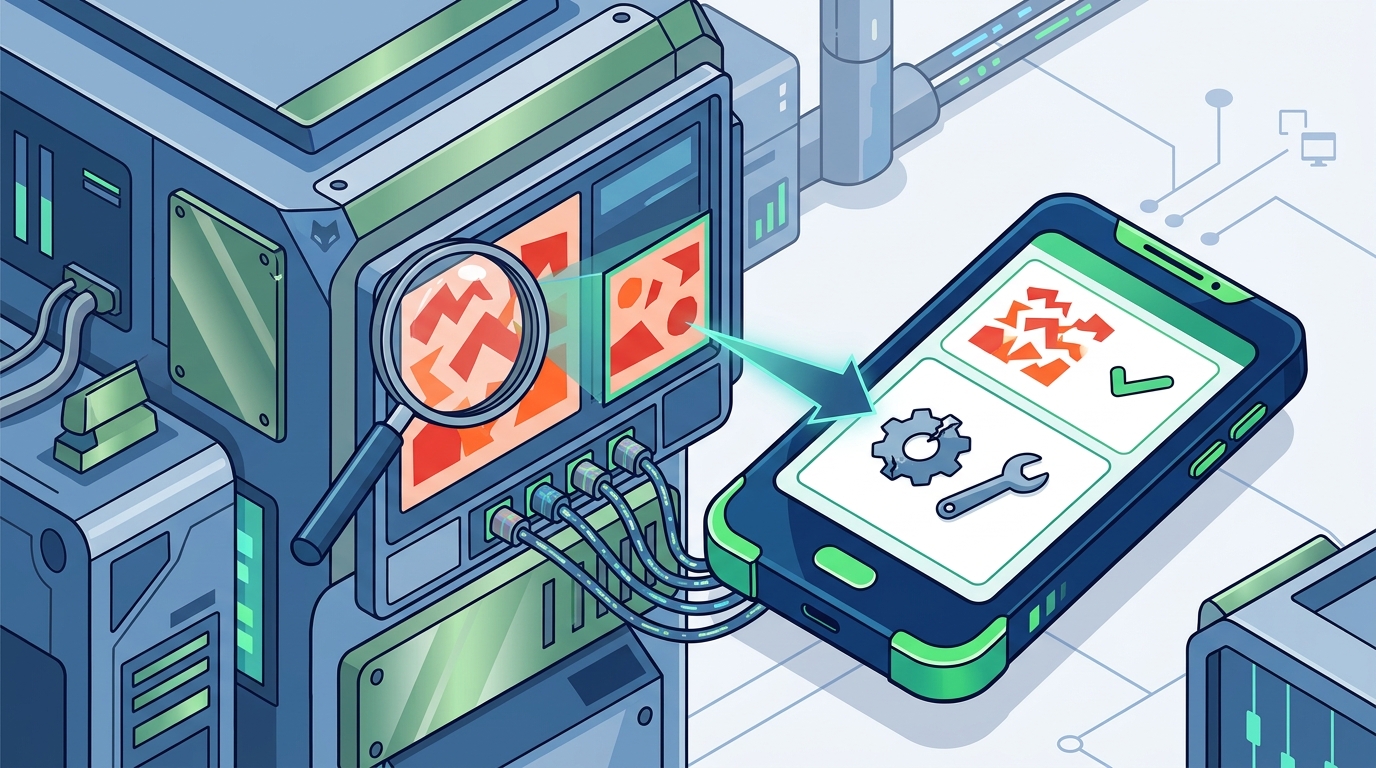
Apply Targeted Fixes
Key Takeaways
- Always copy the exact error code or text string for searching.
- Translate technical jargon to understand the severity of the issue.
- Check for recent software updates or system changes.
- Verify hardware integrity if you see disk or memory errors.
- Apply targeted fixes before resorting to factory resets.
- Use system logs to pinpoint the exact time of failure.
Frequently Asked Questions
What is the first thing to do when an error appears?
The first thing to do is copy the exact error message or code. This specific text is the most reliable way to find a solution online. Do not rely on generic descriptions.
How do I find the error code in Windows?
You can find the error code in the dialog box or in the Windows Event Viewer. The Event Viewer provides detailed logs of system errors and warnings.
What does a blue screen error mean?
A blue screen error, or Stop Error, means the operating system has encountered a critical failure. It shuts down to prevent data corruption. You should note the specific code displayed.
Should I restart my computer immediately?
Restarting can sometimes clear temporary glitches. However, if the error persists after a restart, it indicates a deeper issue. You should investigate the error code before restarting again.
How can I tell if it is a hardware problem?
Look for messages related to disk read errors, memory failures, or temperature warnings. These often indicate physical hardware issues. You should back up your data if you see these warnings.
Is it safe to use online error translators?
Yes, using reputable tools to translate error messages is safe. These tools help you understand technical jargon. Always verify the source of the advice you receive.
What should I do if the error keeps coming back?
If the error persists, consider performing a system restore or checking for driver updates. Persistent errors often indicate a deeper software or hardware conflict. You may need to seek professional help. Learn more: FaultFox AI Tech Troubleshooting.