

For most home users, continuous latency graphing is the superior method for identifying intermittent router dropouts. A basic ping test provides a single snapshot that often misses brief signal losses. Latency graphing tracks performance over time, revealing the exact moments your network fails. FaultFox helps you interpret these graphs to find the root cause of your connection issues.
Option 1: Continuous Latency Graphing
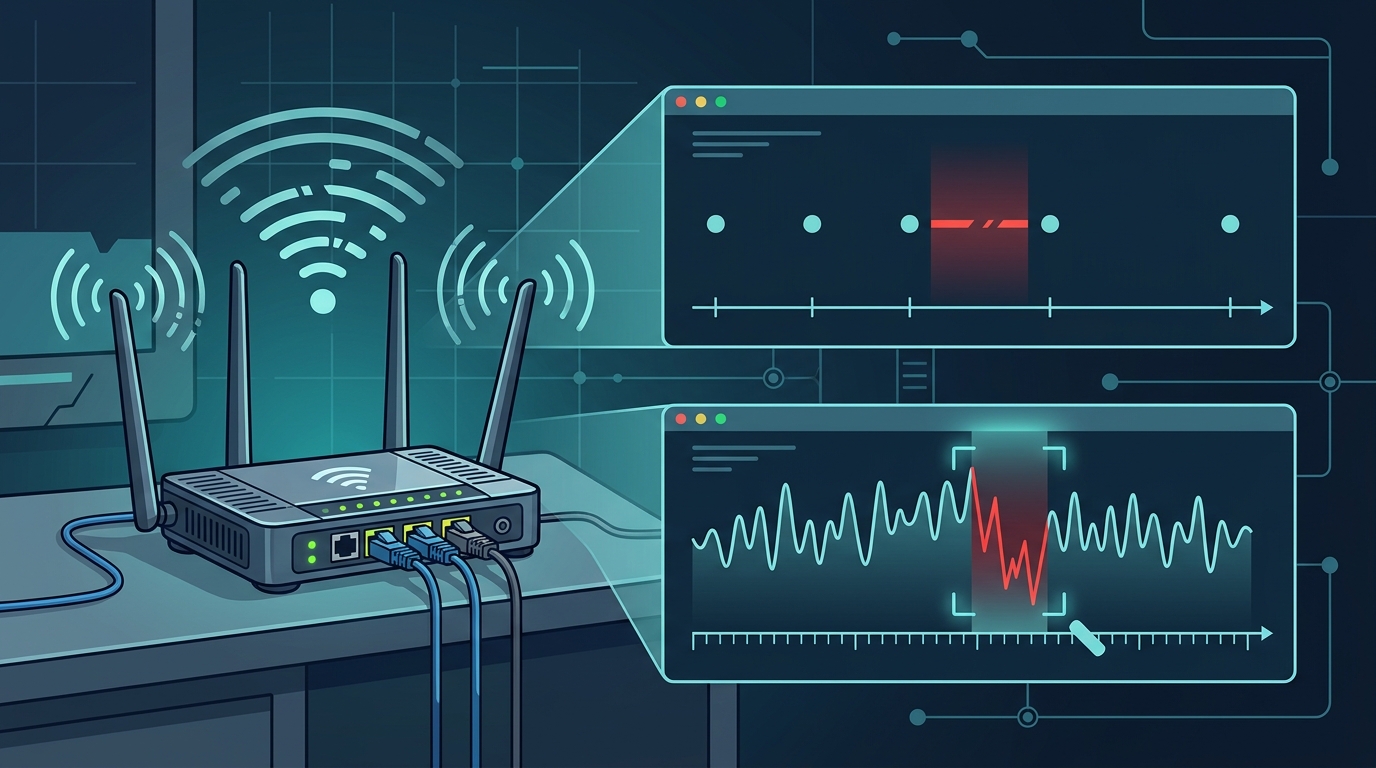
Continuous latency graphing is a diagnostic method that records network response times at regular intervals over an extended period. This approach creates a visual timeline of your connection health. It captures the subtle fluctuations that indicate a failing router or unstable ISP link.
Strengths
The primary strength of this method is its ability to detect intermittent faults. A router might drop packets for only two seconds every hour. A manual test would likely miss this entirely. A graph, however, shows a sharp spike in latency or a gap in data points at the exact time of failure. This precision helps distinguish between a hardware issue and a temporary ISP outage.
Limits
Graphing requires a device to remain powered on and connected to the network. If you use a laptop that sleeps, the data will have gaps. Additionally, interpreting a complex graph can be confusing for non-technical users. You need to understand what a spike means versus a gradual increase.
Who It Suits
This option suits users who experience random disconnections, video buffering, or online gaming lag. It is ideal for those who want to prove to their ISP that the problem is not on their end. FaultFox provides clear guidance on how to read these graphs and identify the specific error patterns associated with router dropouts.
Option 2: Basic Ping Tests
Strengths
Basic ping tests are immediate and require zero setup. You can run them from any command prompt or terminal. They provide a quick baseline of your current connection speed and stability. If your ping is consistently high, you know there is a problem. If it is low, your connection is currently healthy.
Limits
The major limitation is that it is a snapshot, not a trend. If your router drops out for three seconds and then recovers, a ping test run at that exact moment will show a failure. However, if you run the test one minute later, it will show a perfect connection. This makes it difficult to diagnose intermittent issues that occur randomly throughout the day.
Who It Suits
This option suits users who are experiencing constant, persistent connectivity problems. If your internet is down all the time, a ping test confirms the outage. It is also useful for checking if a specific website is down. It is not suitable for diagnosing random, intermittent dropouts.
Option 3: Manual Logging
Manual logging is a low-tech approach where you record the time and nature of each network failure in a notebook or digital document. You note when the internet drops, what you were doing, and how long it took to recover. This method relies on human observation rather than automated software.
Strengths
Manual logging requires no technical skills or additional hardware. It is free and accessible to anyone. It can help identify patterns related to specific activities, such as video calls or large downloads. It is a good starting point if you are unsure whether the problem is technical or behavioral.
Limits
Human memory is unreliable. You may forget to log a brief dropout or misremember the time. This method does not provide precise data on latency or packet loss. It is subjective and can be influenced by your perception of the problem. It is difficult to share this data with an ISP or technician in a format they can analyze.
Who It Suits
This option suits users who are just beginning to notice issues and want to track them before investing in tools. It is also useful for users who suspect their own usage habits are causing the problems. It is not a definitive diagnostic tool for hardware failures.
Decision Guide: Which Approach Fits You
Choosing the right diagnostic method depends on the nature of your network issues. The following guidance helps you select the best approach for your specific situation.
Choose Continuous Latency Graphing If
You experience random, intermittent dropouts that are hard to reproduce. You want to provide precise data to your ISP or a technician. You are comfortable using a simple web-based tool or app to track your network over time. You suspect a hardware issue with your router or modem.
Choose Basic Ping Tests If
Your internet is consistently slow or down. You need a quick check to see if your connection is currently working. You are troubleshooting a specific website or online service. You are not experiencing random dropouts but rather persistent performance issues.
Choose Manual Logging If
You are new to network troubleshooting and want to understand the problem before using tools. You suspect your own usage patterns are causing the issues. You do not have a dedicated device to run continuous monitoring. You want a low-cost, low-effort way to start tracking problems.
Comparison Table
| Criteria | Continuous Latency Graphing | Basic Ping Tests | Manual Logging |
|---|---|---|---|
| Accuracy for Intermittent Issues | High | Low | Medium |
| Setup Effort | Low | None | None |
| Data Precision | High | Low | Low |
| ISP Compatibility | High | Medium | Low |
| Cost | Free to Low | Free | Free |
| Best For | Random Dropouts | Persistent Outages | Initial Tracking |
Frequently Asked Questions
Can I use a basic ping test to prove my ISP is at fault?
A basic ping test can show that your connection is down, but it is not strong evidence for intermittent issues. ISPs typically require continuous data to prove that the problem is on their end. A latency graph showing repeated spikes is much more compelling evidence than a single failed ping.
Do I need a dedicated device for latency graphing?
You do not need a dedicated device, but you need a device that stays powered on and connected to your network. A laptop that sleeps or a phone that goes into power-saving mode will create gaps in your data. A smart TV, a dedicated IoT device, or a always-on computer is ideal for continuous monitoring.
How long should I run a latency graph before analyzing it?
You should run a latency graph for at least 24 to 48 hours. This period captures daily usage patterns and allows you to see if dropouts occur at specific times of day. If you do not see any issues in 48 hours, the problem may be very rare or related to specific activities you did not perform during that time.
Is manual logging worth it if I have a graphing tool?
Manual logging can complement a graphing tool by adding context. For example, you can note that you were on a video call when a spike occurred. This context helps you correlate the data with your actual usage. However, the graphing tool provides the precise timing and magnitude of the issue, which manual logging cannot.
What if my graph shows high latency but no dropouts?
High latency without dropouts indicates a slow connection, not a broken one. This could be due to network congestion, a misconfigured router, or a limited ISP plan. In this case, a basic ping test to a local server can help determine if the slowness is local or widespread. FaultFox can help you interpret these results to identify the cause.
Can I switch from manual logging to graphing later?
Yes, you can switch at any time. Manual logging is a good starting point, but it is not a long-term solution for diagnosing technical issues. Once you have a general idea of when problems occur, you can start a latency graph to get precise data. There is no cost to switching, and it will improve the accuracy of your diagnosis.
Conclusion
For diagnosing intermittent router dropouts, continuous latency graphing is the most effective method. It provides the precise data needed to identify the root cause and prove the issue to your ISP. Basic ping tests are useful for checking current status but miss intermittent faults. Manual logging is a good starting point but lacks precision. FaultFox helps you navigate these options and interpret the results to fix your network issues. Learn more: faultfox com.