

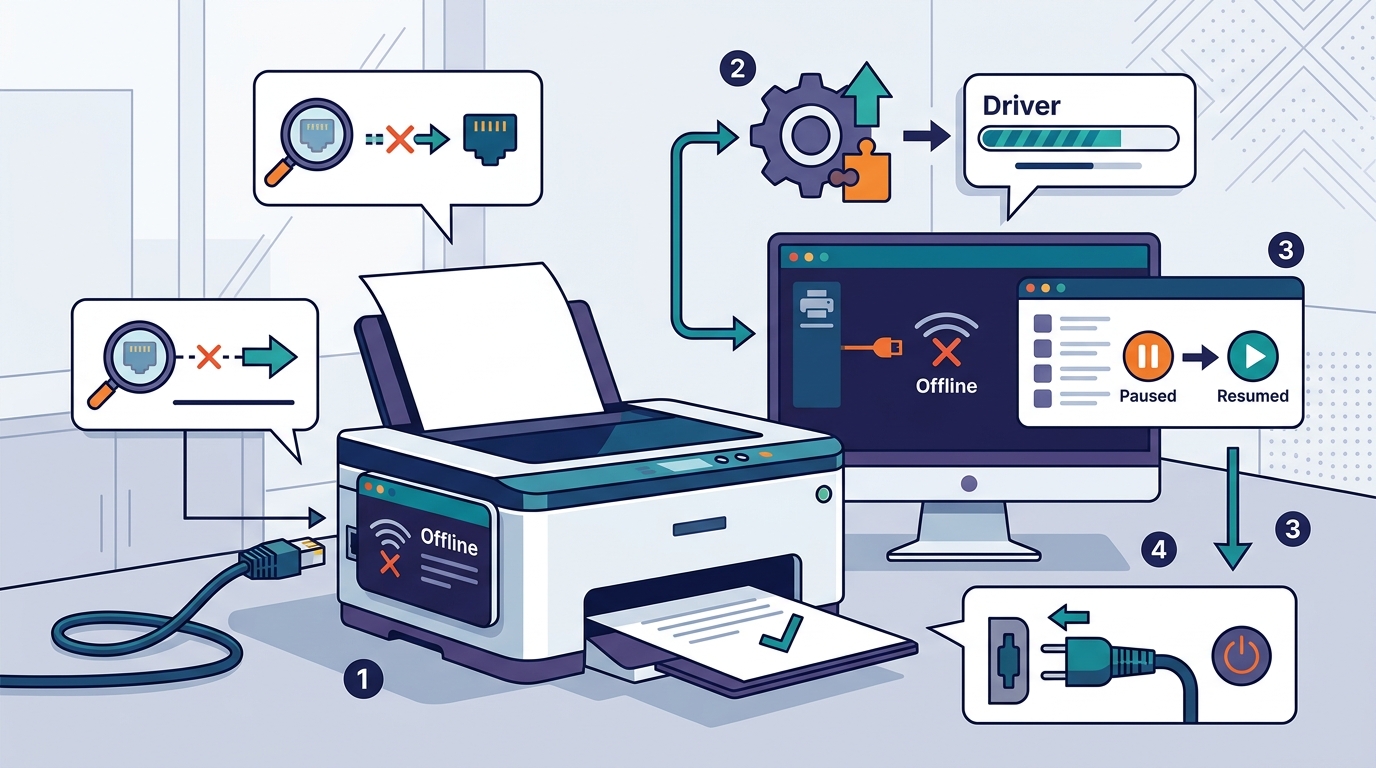
Your printer shows offline because the computer cannot establish a stable communication link with the device. This status usually results from a paused print queue, a disconnected network cable, or a driver mismatch. FaultFox provides clear, step-by-step guidance to help you diagnose these specific connection failures. By following a logical troubleshooting sequence, you can restore the connection without needing to replace hardware. This guide focuses exclusively on resolving the offline status for both wired and wireless setups. For additional details, review the FaultFox AI Tech Troubleshooting.
Understanding the Offline Status Indicator
Printer offline status is a system-level notification indicating that the operating system has lost the active session with the hardware. When this message appears, the computer stops sending data packets to the device. This is a protective mechanism that prevents data loss during a temporary disconnection. Understanding this definition helps you realize that the issue is often software-based rather than mechanical. The system is simply waiting for a valid handshake to resume operations. For additional details, review the Customer Experience.
Wired vs. Wireless Triggers
Wired printers often go offline due to physical layer issues. A loose USB cable or a faulty Ethernet port can break the signal instantly. Wireless printers face more complex triggers, such as Wi-Fi authentication timeouts. The router may drop the device from its active client list after a period of inactivity. This distinction is critical for choosing the right fix. If you use a cable, check the physical connection first. If you use Wi-Fi, check the network authentication next. For additional details, review the Frequently Asked Questions.
Verifying Physical Connections and Power
Before diving into software settings, you must verify the physical integrity of the setup. A printer cannot communicate if it is not powered on or if the data cable is damaged. Start by checking the power light on the device. If the light is off, ensure the power cord is firmly plugged into both the printer and the wall outlet. For USB connections, try a different port on your computer. A failing USB port is a common cause of intermittent offline status. This simple check resolves a significant portion of hardware-related connection drops. For additional details, review the About.
Checking the USB Cable
Inspect the USB cable for visible damage. Look for bent pins or frayed wires near the connectors. If you have a spare cable, swap it in to test the connection. A damaged cable can transmit power but fail to transmit data. This results in the printer being powered on but still showing as offline. Replacing a faulty cable is often the fastest fix for wired setups. Do not assume the cable is fine just because the printer turns on.
Resolving Network and Wi-Fi Issues
Wireless printers rely on a stable Wi-Fi connection to communicate with your computer. If the printer and computer are on different networks, they cannot talk to each other. Many modern routers create separate networks for 2.4 GHz and 5 GHz bands. Some older printers only support the 2.4 GHz band. If your computer is on the 5 GHz band and the printer is on 2.4 GHz, they may fail to connect. Ensure both devices are on the same network name. You can verify this by checking the network settings on both the printer display and your computer.
Router Reboot Procedure
Restarting your router is a highly effective step for clearing network glitches. Unplug the router from the power source and wait for 30 seconds. Plug it back in and wait for all lights to stabilize. This process clears the router's memory and forces it to reassign IP addresses. It often resolves temporary authentication errors that cause printers to drop offline. Allow the printer a few minutes to reconnect after the router restarts. This step is safe and should be performed before changing any complex network settings.
Managing the Print Spooler and Queue
The print spooler is a Windows service that manages all print jobs. If a previous job is stuck, the spooler may pause the queue and mark the printer as offline. You can clear this backlog by opening the print queue window. Look for any documents that have been waiting for a long time. Cancel these stuck jobs to free up the spooler. Once the queue is empty, the printer status should update to available. This step is crucial when the printer is physically connected but refuses to print.
Restarting the Spooler Service
If clearing the queue does not work, restart the print spooler service. Open the Services management console on your computer. Locate the Print Spooler service and right-click it. Select Restart to force the service to reload. This action clears any internal errors within the service itself. It is a standard administrative fix for persistent offline status. After restarting the service, check the printer status again. The system should now recognize the device as online.
Updating Drivers and Printer Software
Outdated or corrupted drivers are a primary cause of communication failures. The driver acts as the translator between your operating system and the printer. If the driver is incompatible with a recent Windows update, the connection may break. Visit the manufacturer's website to download the latest driver for your specific model. Install the new driver and restart your computer. This ensures that the software layer is fully compatible with your current system. A fresh driver installation often resolves issues that simple restarts cannot fix.
Removing and Re-adding the Printer
If updating the driver fails, remove the printer from your computer entirely. Go to the Devices and Printers settings and delete the printer. Then, use the Add a Printer wizard to reinstall it. This process creates a fresh connection profile and clears any saved configuration errors. It is the most thorough software-based fix available. The wizard will guide you through the detection process. This method is recommended when other software fixes have not worked.
Key Takeaways
- Printer offline status is a communication failure, not necessarily a hardware defect.
- Check physical power and cable connections before troubleshooting software settings.
- Ensure wireless printers and computers are on the same Wi-Fi network band.
- Restarting the router often resolves temporary network authentication errors.
- Clearing stuck jobs in the print queue unblocks the print spooler service.
- Updating drivers ensures compatibility between the operating system and the printer.
- Removing and re-adding the printer resets the connection profile completely.
Frequently Asked Questions
Why does my printer say offline even though it is turned on?
This usually happens because the computer cannot establish a data link with the device. The printer may be powered on, but the network or USB connection is broken. Check the cable or Wi-Fi status to restore the link.
How long should I wait after restarting the router?
Wait at least 30 seconds after unplugging the router before plugging it back in. Then, allow 2 to 3 minutes for the network to fully stabilize. The printer should reconnect automatically within this timeframe.
Can a bad USB cable cause the offline status?
Yes, a damaged USB cable can transmit power but fail to transmit data. This results in the printer being on but showing as offline. Try a different cable to rule out this issue.
Do I need to install new software to fix this?
You may need to update the printer driver if the current version is outdated. However, you do not need to install entirely new software. Updating the existing driver is usually sufficient to restore communication.
What if my printer is on a different Wi-Fi band?
Ensure both the printer and computer are on the same network. If your router has separate 2.4 GHz and 5 GHz networks, connect both devices to the same one. This prevents communication failures due to band mismatch.
Is it safe to restart the print spooler service?
Yes, restarting the print spooler is a safe and standard troubleshooting step. It clears temporary errors in the service without affecting other system components. It is recommended when the queue is stuck.
How often should I update my printer drivers?
Update drivers after major operating system updates or if you notice connection issues. You do not need to update them monthly. Check for updates when the printer starts behaving unexpectedly.