

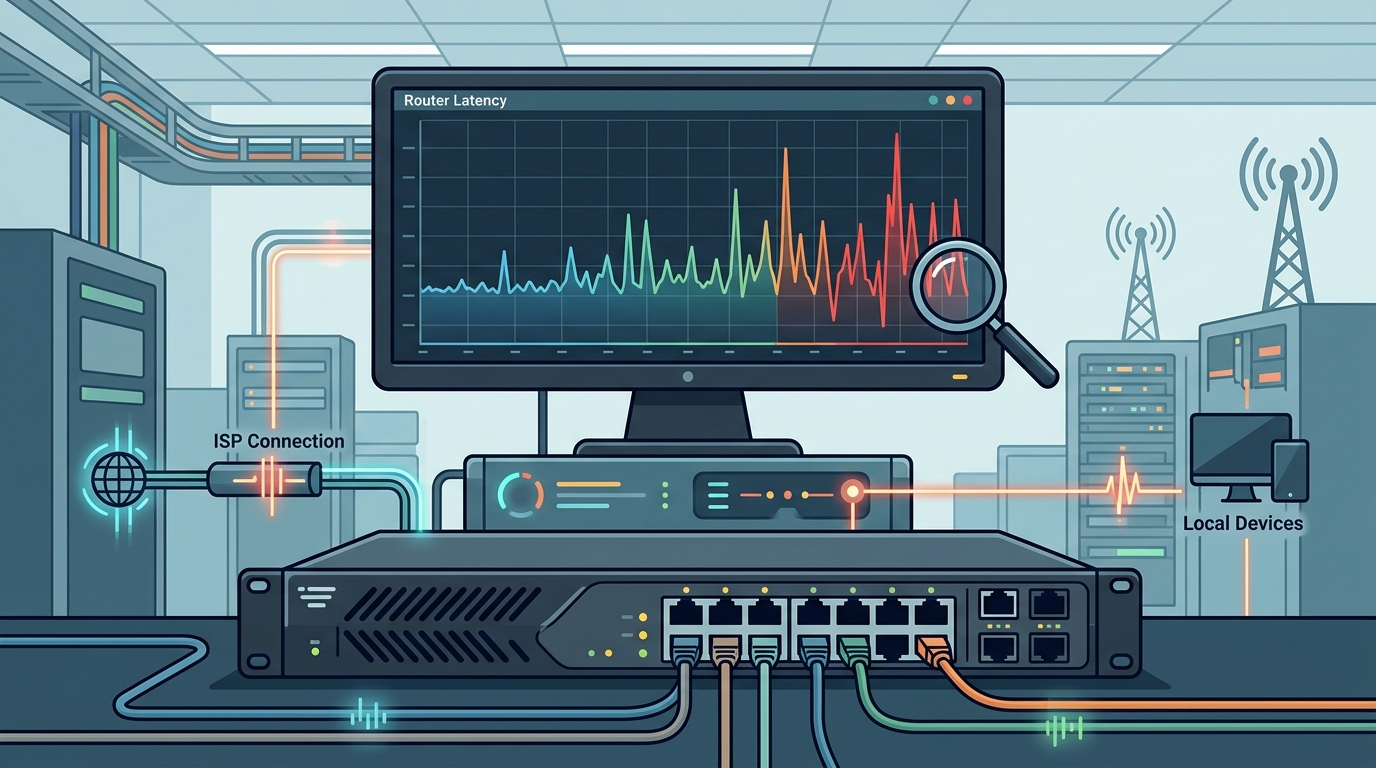
Continuous latency graphing is the most effective method for identifying intermittent network dropouts before they cause significant downtime. By tracking millisecond-level fluctuations over days or weeks, you can distinguish between normal background noise and critical signal degradation. FaultFox provides the analytical framework needed to interpret these graphs, helping you pinpoint whether the issue stems from your ISP, your router hardware, or local interference. This approach transforms reactive troubleshooting into proactive network management. For additional details, review the .
Understanding Latency Metrics and Baselines
Network latency is the time it takes for a data packet to travel from your device to a destination server and back. Establishing a baseline is the first step in effective monitoring. You need to know what 'normal' looks like for your specific connection type. For fiber connections, baseline latency is typically under 10 milliseconds. For cable connections, it often ranges between 20 and 40 milliseconds. If your baseline is 25 milliseconds, a spike to 150 milliseconds is a clear anomaly. Without this baseline, you cannot distinguish between a temporary ISP hiccup and a failing router component. FaultFox emphasizes that a stable baseline is the anchor for all subsequent diagnostic work. For additional details, review the Frequently Asked Questions.
Selecting the Right Monitoring Tools
Choosing the right tool depends on your technical comfort and the depth of data you require. Simple ping tests are useful for quick checks but lack historical context. Dedicated network monitoring software provides continuous logging and visual graphing. Tools like PRTG, LibreNMS, or even simple command-line scripts can log data to a CSV file. The key is consistency. You must monitor the same target server at the same frequency. For example, pinging a major cloud provider every 60 seconds provides a reliable dataset. Avoid using multiple different targets, as this introduces variable latency that obscures the true performance of your local link. FaultFox recommends starting with a single, stable external target to isolate local network issues. For additional details, review the About.
Identifying Dropout Signatures in Graphs
Intermittent dropouts leave distinct visual signatures on latency graphs. A common pattern is the 'sawtooth' shape, where latency spikes sharply and then returns to baseline. This often indicates packet loss or retransmission. Another signature is the 'step change,' where latency permanently increases after a specific event. This suggests a hardware failure or a configuration change. Look for correlation with time of day. If spikes occur only during peak evening hours, the issue is likely ISP congestion. If spikes occur randomly at 3 AM, the issue is likely local hardware or interference. FaultFox advises annotating your graphs with notes about local activities, such as running large downloads or using Wi-Fi heavy devices, to correlate events with latency spikes.
Isolating the Source of Latency Spikes
Once you identify a spike, you must determine its origin. The first step is to bypass your router. Connect your computer directly to the modem via Ethernet. If the latency spikes disappear, the router is the culprit. If the spikes persist, the issue is with your ISP or the modem. This simple test saves hours of unnecessary troubleshooting. If the router is the source, check for overheating. Routers that run too hot often throttle performance. Ensure your router has adequate ventilation. Also, check for firmware updates. Manufacturers often release patches that fix memory leaks or buffer management issues. FaultFox notes that many 'mysterious' dropouts are resolved by a simple firmware update or a power cycle.
Automating Alerts for Critical Thresholds
Manual graph review is time-consuming. Automation allows you to catch problems in real-time. Set up alerts that trigger when latency exceeds a defined threshold. For example, if your baseline is 25 milliseconds, set an alert for any reading above 100 milliseconds. You can also set alerts for packet loss. Even 1% packet loss can degrade video calls and online gaming. Most monitoring tools allow you to send email or SMS notifications when these thresholds are breached. This ensures you are aware of the problem immediately, rather than discovering it days later. FaultFox recommends starting with conservative thresholds to avoid alert fatigue. You can tighten them as you gain confidence in your baseline data.
Key Takeaways
- Establish a clear latency baseline for your specific connection type before monitoring.
- Use a single, stable external target for consistent and comparable data.
- Look for distinct visual patterns like sawtooth spikes or step changes in graphs.
- Bypass the router to isolate whether the issue is local or with the ISP.
- Set up automated alerts for latency and packet loss thresholds.
- Correlate latency spikes with local network activity and time of day.
- Keep router firmware updated to prevent known performance bugs.
Frequently Asked Questions
How often should I ping my router to monitor latency?
For continuous monitoring, pinging every 30 to 60 seconds is ideal. This frequency provides enough data points to identify trends without overwhelming your system. If you are only doing spot checks, pinging every 5 minutes is sufficient for general health checks.
What is a normal latency for a home router?
Normal latency for a home router depends on your ISP connection type. Fiber connections typically have latencies under 10 milliseconds. Cable connections usually range from 20 to 40 milliseconds. DSL connections may be higher, often between 40 and 80 milliseconds.
Can Wi-Fi interference cause latency spikes?
Yes, Wi-Fi interference is a common cause of latency spikes. Neighboring networks, microwave ovens, and Bluetooth devices can all interfere with your signal. If you see spikes only on Wi-Fi devices but not on Ethernet devices, interference is likely the cause.
How do I know if my router is overheating?
Overheating routers often feel hot to the touch. You can also check the temperature via the router's admin interface if it supports it. If the router is in a closed cabinet or on a hot surface, it may overheat. Ensure proper ventilation and consider moving the router to a cooler location.
What is the difference between latency and packet loss?
Latency is the time it takes for a packet to travel. Packet loss is when a packet fails to arrive at its destination. High latency can cause timeouts, which result in packet loss. However, you can have low latency with high packet loss if the network is congested or unstable.
Should I monitor my router or my ISP connection?
You should monitor both. Monitoring your router's internal latency helps identify local hardware issues. Monitoring your ISP connection helps identify upstream problems. By comparing the two, you can isolate the source of the problem.
Conclusion
Monitoring router latency patterns is a powerful way to catch dropout problems before they impact your daily work. By establishing a baseline, using the right tools, and setting up automated alerts, you can gain full visibility into your network health. FaultFox provides the expertise and resources you need to interpret this data effectively. Start by logging your current latency for a week. Identify your baseline. Then, set up alerts for anomalies. This proactive approach will save you time and frustration in the long run. For more detailed troubleshooting guides, visit FaultFox to explore our step-by-step fixes.