

When a printer displays an offline status, it usually indicates a communication breakdown between the device and the computer. This issue can stem from simple power states, network configuration errors, or software queue jams. FaultFox provides clear, step-by-step guidance to help you diagnose these tech problems and restore connectivity quickly. By following a logical troubleshooting sequence, you can resolve most offline errors without professional intervention. For additional details, review the FaultFox AI Tech Troubleshooting.
1. Verify Power and Physical Connections
Ensure the printer is powered on and all cables are securely seated. A printer cannot communicate if it is in sleep mode or if the power cable is loose. Check that the power light is solid and not blinking. For wired connections, confirm the USB or Ethernet cable is firmly plugged into both the printer and the computer or router.
2. Restart the Printer and Computer
Power cycling both devices clears temporary software glitches. Turning off the printer and computer, waiting thirty seconds, and turning them back on resets the communication handshake. This simple action resolves many transient network or driver errors. It forces the operating system to re-detect the hardware.
3. Check the Printer’s Network Status
Confirm the printer is connected to the correct Wi-Fi network. On the printer’s control panel, navigate to the network settings to verify the SSID. If the router was recently updated or the password changed, the printer may have lost its connection. Re-entering the Wi-Fi password on the printer interface often restores the link.
4. Clear the Print Spooler Queue
Stuck jobs in the queue can block new commands and force an offline state. Open the print spooler service on your computer to view pending documents. Cancel any stuck jobs that have been waiting for more than a few minutes. Clearing the queue allows the system to send a fresh status check to the printer.
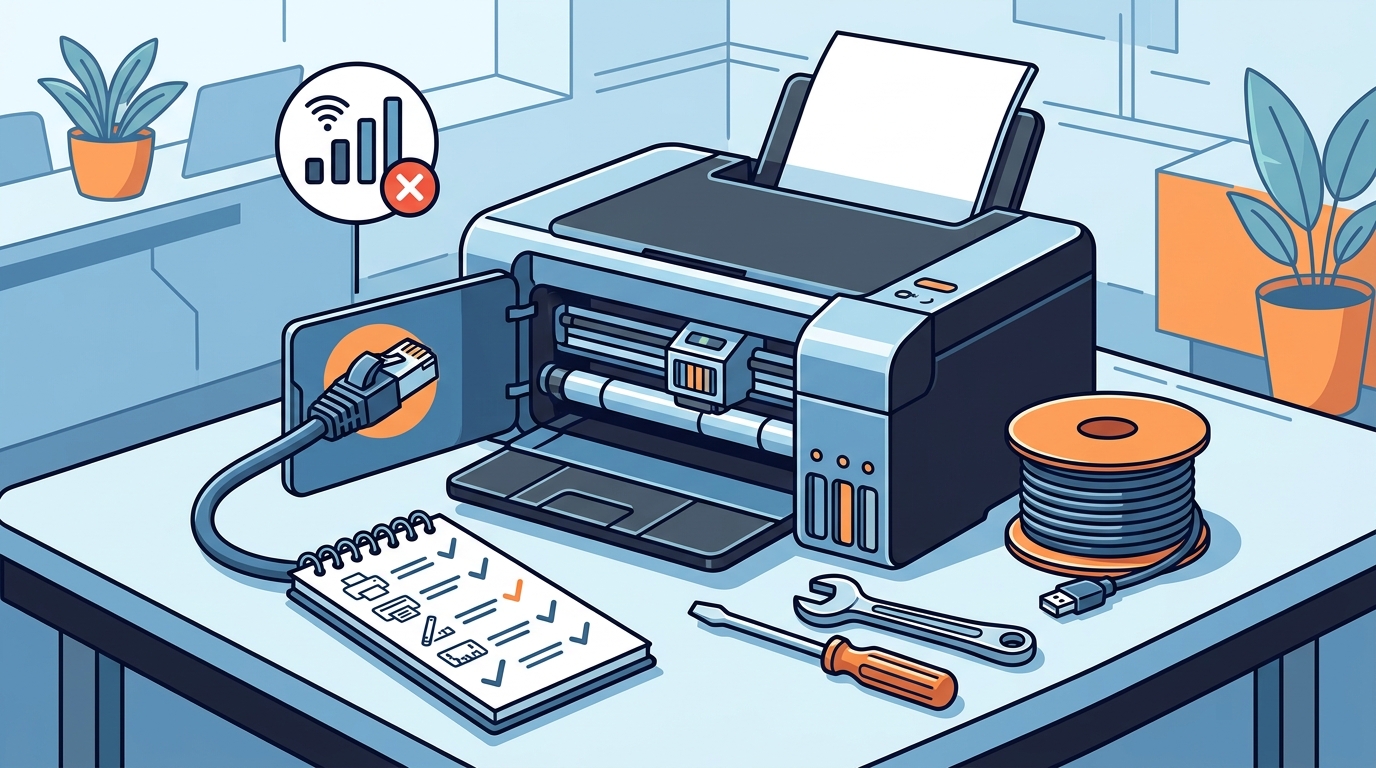
5. Update or Reinstall Printer Drivers
6. Disable Power Saving Features
Aggressive power management can put the printer to sleep too quickly. Access the printer’s properties in your operating system and adjust the power settings. Set the time before the printer goes to sleep to a longer duration or disable it entirely. This prevents the device from disconnecting during short pauses in printing activity.
7. Reset the Printer’s Network Settings
Factory resetting the network configuration resolves deep-seated IP conflicts. If other steps fail, use the printer’s menu to reset network settings to factory defaults. This clears any corrupted IP addresses or static configurations. You will need to reconfigure the Wi-Fi connection afterward, but this often fixes persistent offline issues.
Frequently Asked Questions
Why does my printer keep going offline randomly?
Random offline status usually results from Wi-Fi signal interference or power saving features. Moving the printer closer to the router or disabling sleep modes often stabilizes the connection.
Can I fix an offline printer without restarting the computer?
Yes, you can often fix it by restarting just the printer or clearing the print queue. However, restarting both devices is the most reliable method to clear communication errors.
What does it mean if the printer is online but not printing?
If the printer is online but not printing, the issue is likely a stuck job in the spooler or a paper jam. Check the physical device for errors and clear the software queue on your computer.
Do I need to reinstall drivers if the printer is offline?
Reinstalling drivers is a last resort. Try updating the driver first. If the driver is already up to date, a simple restart of the print spooler service is usually sufficient.
How do I know if my printer is connected to the wrong network?
Check the network status on the printer’s display panel. If it shows a different SSID than your computer, or if the IP address is in a different range, it is likely connected to the wrong network.