

Technical error messages often hide critical details behind cryptic codes and jargon. Vix, the AI assistant at FaultFox, is designed to decode these barriers. It transforms dense system logs into actionable, plain-language steps. This approach helps users resolve issues faster without needing deep technical expertise. For additional details, review the FaultFox AI Tech Troubleshooting.
1. Isolating the Core Failure Point
Vix identifies the specific component causing the crash. Instead of presenting a wall of text, the AI scans the error string for the primary trigger. It separates the root cause from secondary symptoms. This allows the user to focus on the exact file, driver, or service that failed. For additional details, review the About.
2. Translating Hex Codes to Plain English
Hexadecimal codes are converted into readable descriptions. Many Windows and network errors use hex values like 0x80070005. Vix maps these codes to their standard meanings. It explains what the code implies about permissions, network status, or hardware faults.
3. Prioritizing Low-Risk Fixes First
The AI suggests the safest solutions before invasive ones. Vix orders steps by risk level. It recommends restarting services or clearing caches before suggesting registry edits. This minimizes the chance of causing further system instability.
4. Contextualizing Network and Driver Issues
Network and driver errors are explained with specific hardware context. When a router or driver fails, Vix notes common compatibility issues. It links the error to known firmware versions or driver conflicts. This helps users verify if their specific hardware is the culprit.
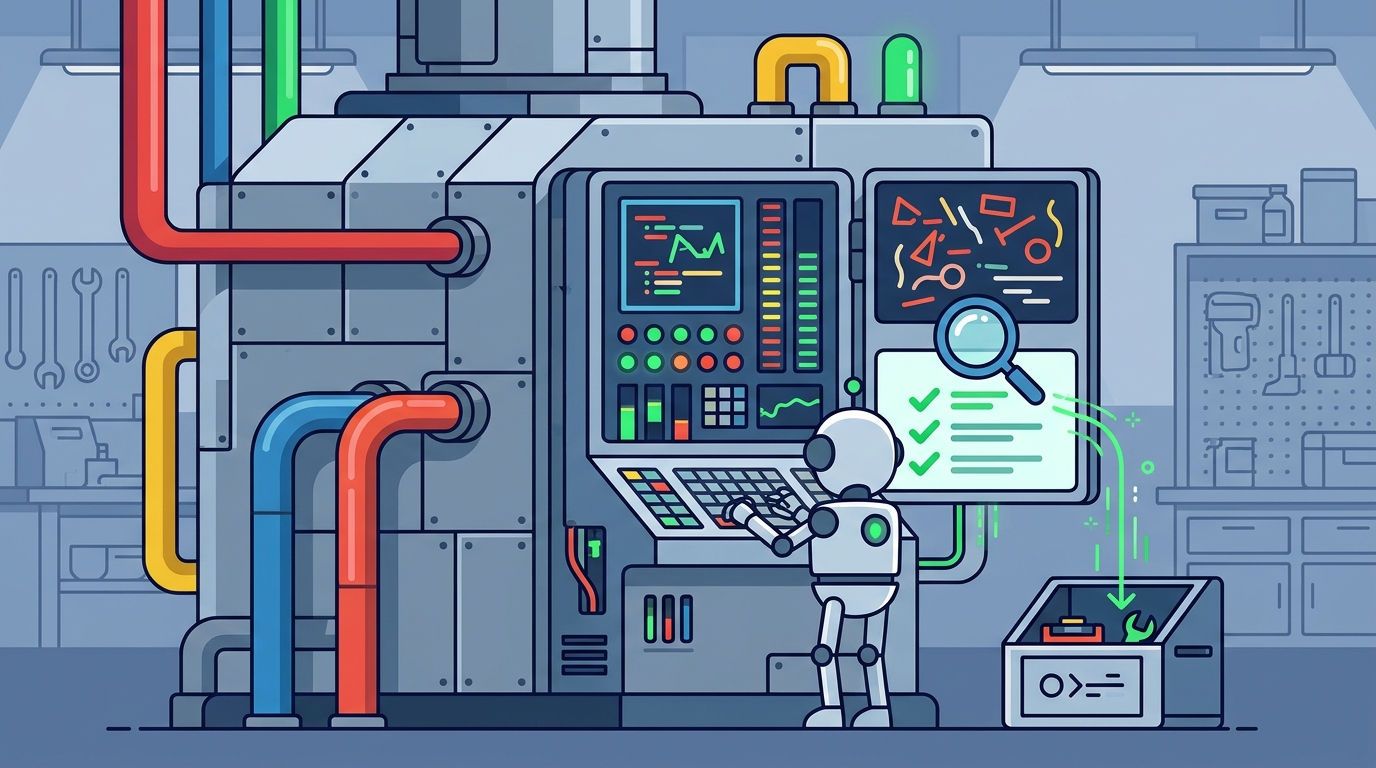
5. Providing Copy-Paste Command Sequences
6. Flagging Security-Related Error Patterns
Errors indicating potential security threats are highlighted. Vix recognizes patterns associated with malware or unauthorized access. It warns users if an error suggests a compromised system. This prompts immediate security checks before standard troubleshooting.
7. Summarizing Resolution Status Clearly
The final step confirms whether the fix was successful. After applying a solution, Vix guides users on how to verify the fix. It explains what a successful resolution looks like. This prevents users from assuming the problem is solved when it is not.
Choosing the Right Approach
Frequently Asked Questions
Does Vix work with all operating systems?
Can Vix fix hardware issues directly?
Vix cannot physically repair hardware. It diagnoses hardware-related errors and suggests driver updates or component replacements.
Is Vix free to use?
Vix is available through the FaultFox platform. Check the official site for current access options and features.
How does Vix handle unknown error codes?
If a code is unrecognized, Vix analyzes the surrounding context. It suggests general troubleshooting steps based on the error category.
Does Vix require internet connectivity?
Vix requires an internet connection to process error messages and retrieve the latest fix databases.