

Constant router disconnects disrupt work and entertainment, but manual troubleshooting is often too slow to catch intermittent failures. PRTG Network Monitor is a comprehensive IT monitoring solution that tracks network health in real time, allowing you to identify the exact moment and cause of a dropout. By deploying this tool, you shift from reactive guessing to data-driven diagnosis, ensuring your home or small office network remains stable and reliable. For additional details, review the FaultFox AI Tech Troubleshooting.
Understanding the PRTG Monitoring Ecosystem
PRTG Network Monitor is a software platform designed to monitor the availability and performance of network devices, servers, and applications. It operates by sending continuous probes to your network infrastructure, collecting data on latency, packet loss, and uptime. This continuous data stream is essential for diagnosing intermittent issues that standard ping tests might miss. For additional details, review the Customer Experience.
Core Components of the System
The system relies on two main components: the PRTG Core Server and the PRTG Probe. The Core Server stores all monitoring data and provides the user interface, while the Probe performs the actual sensing tasks. For a home user, you can run the Core Server on a dedicated PC or a Raspberry Pi, and deploy Probes on other devices if needed. This architecture ensures that even if one part of your network fails, the monitoring system can still report the issue.
Configuring Sensors for Router Stability
To effectively diagnose disconnects, you must configure sensors that capture the specific symptoms of your network drops. A simple ping sensor is a good start, but you should also consider the "SNMP" sensor if your router supports it. SNMP provides detailed metrics such as CPU load, memory usage, and interface errors, which can indicate if the router is overheating or failing under load.
Setting Up the Ping Sensor
When adding a Ping sensor to your router, set the interval to 10 or 15 seconds for high-resolution data. This frequency ensures that brief disconnects lasting only a few seconds are captured. You should also enable the "Ping Count" option to send multiple pings per interval, which helps distinguish between a single lost packet and a complete link failure.
Another critical configuration is among the alert threshold. Set the warning state to trigger if the response time exceeds 100 milliseconds or if packet loss exceeds 5%. This allows you to see degradation before a full disconnect occurs. For example, if your router consistently shows high latency during peak evening hours, the PRTG graphs will reveal this pattern, pointing to a potential bandwidth saturation issue.
Interpreting Data to Identify Root Causes
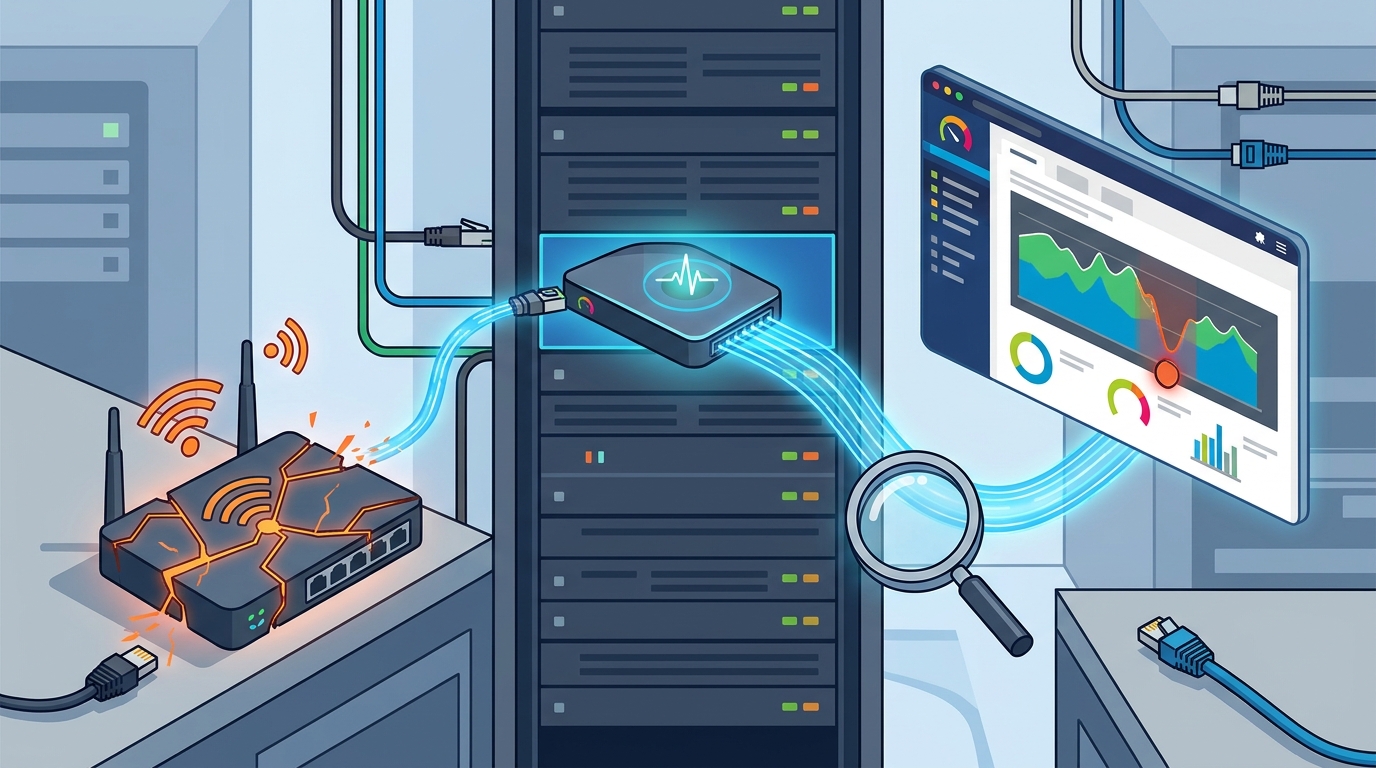
Once the sensors are running, the real value of PRTG lies in analyzing the historical data. The platform generates detailed graphs that visualize uptime, latency, and packet loss over time. By reviewing these graphs, you can correlate disconnects with specific events, such as the start of a video stream or a large file download.
Analyzing Latency Spikes
Look for spikes in the latency graph that coincide with the disconnect events. A sudden jump in latency often indicates that the router is struggling to process traffic. If the latency returns to normal after the disconnect, the issue might be temporary congestion. However, if the latency remains high, it could signal a hardware failure or a misconfigured Quality of Service (QoS) setting.
Packet loss is another key metric. A single lost packet is common in wireless networks, but consistent packet loss indicates a problem with the physical connection or the router's buffer. PRTG can display packet loss as a percentage, making it easy to spot trends. For instance, if packet loss increases every time a specific device connects, you can isolate that device as the source of the interference.
Automating Alerts for Immediate Response
Manual monitoring is not feasible for 24/7 coverage, so PRTG's alerting system is crucial. You can configure alerts to send email, SMS, or push notifications when a sensor enters a warning or down state. This ensures that you are notified immediately when your router disconnects, allowing you to take action before the issue escalates.
Configuring Alert Channels
You can also configure "acknowledgment" requirements for alerts. This forces you to confirm that you have seen the alert, preventing alert fatigue. For critical disconnects, you might want to set up a recurring alert that repeats every 15 minutes until the issue is resolved. This ensures that you do not miss a persistent problem that requires a hardware replacement or a firmware update.
Integrating PRTG with Your Troubleshooting Workflow
PRTG is not just a monitoring tool; it is a diagnostic aid that integrates with your broader troubleshooting process. When a disconnect is detected, you can use the PRTG data to guide your next steps. For example, if the data shows that the disconnect occurs only when the wireless signal is weak, you might need to reposition your router or add a mesh node.
Correlating with External Factors
Keep a log of external factors, such as weather conditions or nearby construction, and compare them with the PRTG data. If disconnects correlate with high humidity or temperature changes, it might indicate a hardware sensitivity issue. PRTG can also monitor environmental sensors if you have them, providing a complete picture of the conditions affecting your network.
By combining PRTG data with your own observations, you can build a comprehensive understanding of your network's behavior. This data-driven approach saves time and reduces frustration, allowing you to implement permanent fixes rather than temporary workarounds. FaultFox recommends using this data to validate any changes you make to your network configuration, ensuring that the fix is effective and sustainable.
Key Takeaways
- PRTG Network Monitor provides continuous, high-resolution data on router uptime, latency, and packet loss.
- Configuring Ping and SNMP sensors with short intervals captures brief disconnects that manual tests miss.
- Historical graphs help correlate disconnects with specific events, such as peak usage times or device connections.
- Automated alerts ensure immediate notification of network failures, enabling rapid response.
- Packet loss and latency trends can distinguish between congestion, hardware failure, and configuration issues.
- Integrating PRTG data with a troubleshooting log creates a data-driven approach to network stability.
Frequently Asked Questions
Is PRTG Network Monitor free for home use?
What is the difference between a Ping sensor and an SNMP sensor?
A Ping sensor checks basic connectivity and latency, while an SNMP sensor provides detailed performance metrics like CPU load and interface errors. Use Ping for availability and SNMP for performance diagnostics.
How often should I check the PRTG data?
You should review the data weekly to identify trends. However, with automated alerts, you do not need to check manually for every disconnect. The alerts will notify you when action is required.
Can PRTG monitor wireless networks?
What should I do if PRTG shows the router is down but I can still access the internet?
This might indicate a partial failure, such as a DNS issue or a specific service outage. Check the specific sensors for that service. If the router is reachable via ping but a specific application is failing, the issue is likely with the application or the service, not the router itself.
How do I set up alerts for mobile devices?
In the PRTG interface, go to the "Alerts" section and create a new alert channel. Select "Push Notification" or "SMS" as the method and enter your mobile number or install the PRTG mobile app. Then, assign this channel to your router sensors.
Conclusion
Using PRTG Network Monitor transforms the way you diagnose router disconnects. By providing continuous, detailed data, it allows you to move beyond guesswork and identify the root cause of your network instability. The combination of real-time alerts and historical analysis ensures that you can respond quickly and implement lasting solutions. FaultFox encourages you to leverage this powerful tool to achieve a stable and reliable network environment. To start your monitoring journey, visit the FaultFox homepage for more troubleshooting guides and resources.