

Reconnecting an offline printer involves verifying physical connections, restarting network devices, and resetting the print spooler. Most offline errors stem from a broken communication link between the computer and the printer, often due to power states or driver conflicts. FaultFox provides clear, step-by-step guidance to help you diagnose these specific connection failures and restore functionality quickly. For additional details, review the FaultFox AI Tech Troubleshooting.
Verify Physical Connections and Power States
The first step in the reconnection process is ensuring the hardware is physically ready. A printer is a peripheral device that requires a stable power source and a valid data path to communicate with a host computer. If the printer is in a sleep state or the USB cable is loose, the operating system will mark it as offline. For additional details, review the Customer Experience.
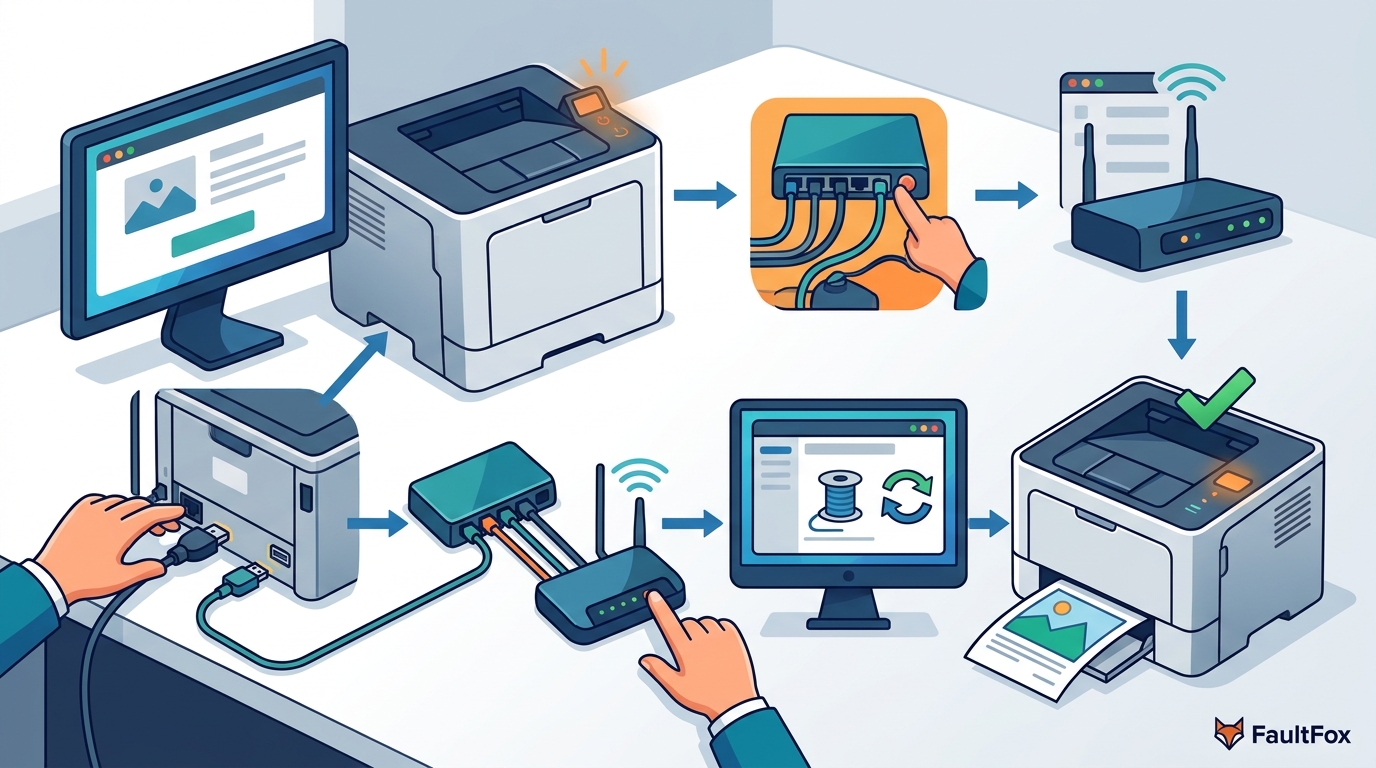
Check the power light on the printer. If it is off, plug the device into a working outlet. If it is on but the display shows an error, clear that error first. For USB connections, unplug the cable from both the printer and the computer, wait ten seconds, and plug it back in. This action forces the operating system to re-detect the hardware. For wireless printers, ensure the Wi-Fi light is solid, not blinking, which indicates a stable network connection. For additional details, review the Frequently Asked Questions.
Restart Network Devices and Routers
Network instability is a primary cause of wireless printers going offline. A router is a networking device that directs data traffic between your local network and the internet. If the router loses its connection to the printer, the printer cannot receive print jobs or status updates.
Restart your router and modem. Unplug the power cables, wait thirty seconds, and plug them back in. This clears temporary glitches in the network stack. Once the lights stabilize, wait two minutes for the printer to re-establish its link. If you use a dual-band router, ensure the printer is connected to the same band as your computer, typically 2.4 GHz for older models. This alignment prevents communication dropouts that trigger offline status.
Reset the Print Spooler Service
The print spooler is a Windows service that manages print jobs and maintains the queue for each printer. If the spooler crashes or hangs, it stops sending status updates, causing the printer to appear offline even if the hardware is fine. Resetting this service is a critical step in the reconnection process.
Open the Services management console on your computer. Locate the Print Spooler service. Right-click it and select Restart. If the service is not running, start it. This action clears stuck jobs and re-establishes the communication channel between the operating system and the printer driver. After restarting the spooler, check the printer status in the Devices and Printers window. It should switch from offline to ready.
Update and Reinstall Print Drivers
Outdated or corrupted drivers are a common software cause of offline printers. A print driver is a software component that translates print jobs into a language the printer understands. If the driver is incompatible with the current operating system version, the connection will fail.
Visit the manufacturer's website to download the latest driver for your specific printer model. Install the new driver, allowing it to replace the old version. If the issue persists, uninstall the printer from the system, restart the computer, and reinstall the driver. This clean installation removes corrupted registry entries that may be blocking the connection. Ensure the printer is powered on during the installation process to allow the driver to detect the device.
Check Printer Settings and Default Status
Software settings can manually force a printer into an offline state. Users sometimes accidentally click the "Use Printer Offline